BigQuery: ACE Exam Study Guide (2026)

Image source: Google Cloud Documentation
1. Core Overview
- Database Type: Fully managed, serverless enterprise data warehouse (EDW).
- Workload Type: Designed specifically for OLAP (Online Analytical Processing) and massive data analytics, rather than transactional (OLTP) application workloads.
- Scale: Can query terabytes in seconds and petabytes in minutes.
- Architecture: Utilizes a columnar storage format and completely separates the compute processing from the underlying storage.
2. Interacting with BigQuery
For the ACE exam, you are expected to know how to interact with BigQuery beyond the Google Cloud Console.
- Command Line: The primary CLI tool for BigQuery is
bq(not the standardgcloudcommand used for most other services). - Common Commands:
bq query: Run a standard SQL query.bq load: Load data from a source file into a BigQuery table.bq extract: Export data from a BigQuery table out to Cloud Storage.bq show: Display the schema or metadata for a specific dataset or table.
3. Cost Optimization and Performance (Heavily Tested)
The exam frequently tests your ability to run queries efficiently without generating unexpected costs.
- Columnar Architecture: BigQuery charges by the amount of data scanned, not the amount of data returned. Using
SELECT *is a bad practice. Selecting only specific columns reduces costs. - The LIMIT Clause: Adding
LIMIT 10does not reduce costs. BigQuery scans the entire column first. - Cost Estimation: Use the
--dry_runflag in thebqCLI or the “Query Validator” in the Console to see how many bytes a query will scan before running it. - Partitioning: Segments tables by time (e.g.,
_PARTITIONTIME), date, or integer range. Drastically reduces costs by “pruning” partitions. - Clustering: Sorts data based on specific columns (up to 4). Best for queries using filters (
WHERE) or aggregations (GROUP BY). Unlike partitioning, clustering is “best effort” but highly effective for high-cardinality columns.
3.1. Partitioning
Partitioning divides a large table into smaller segments, called partitions, based on a specific column (usually a date, timestamp, or integer).
- How it works: When you run a query with a filter on the partition column (e.g.,
WHERE date = '2024-01-01'), BigQuery “prunes” the table and only scans the specific partition that matches the filter, ignoring everything else. - Best for: Time-series data or data with a natural “range” (like ID ranges).
- Impact: Significantly reduces the number of bytes billed and improves query speed for large datasets.
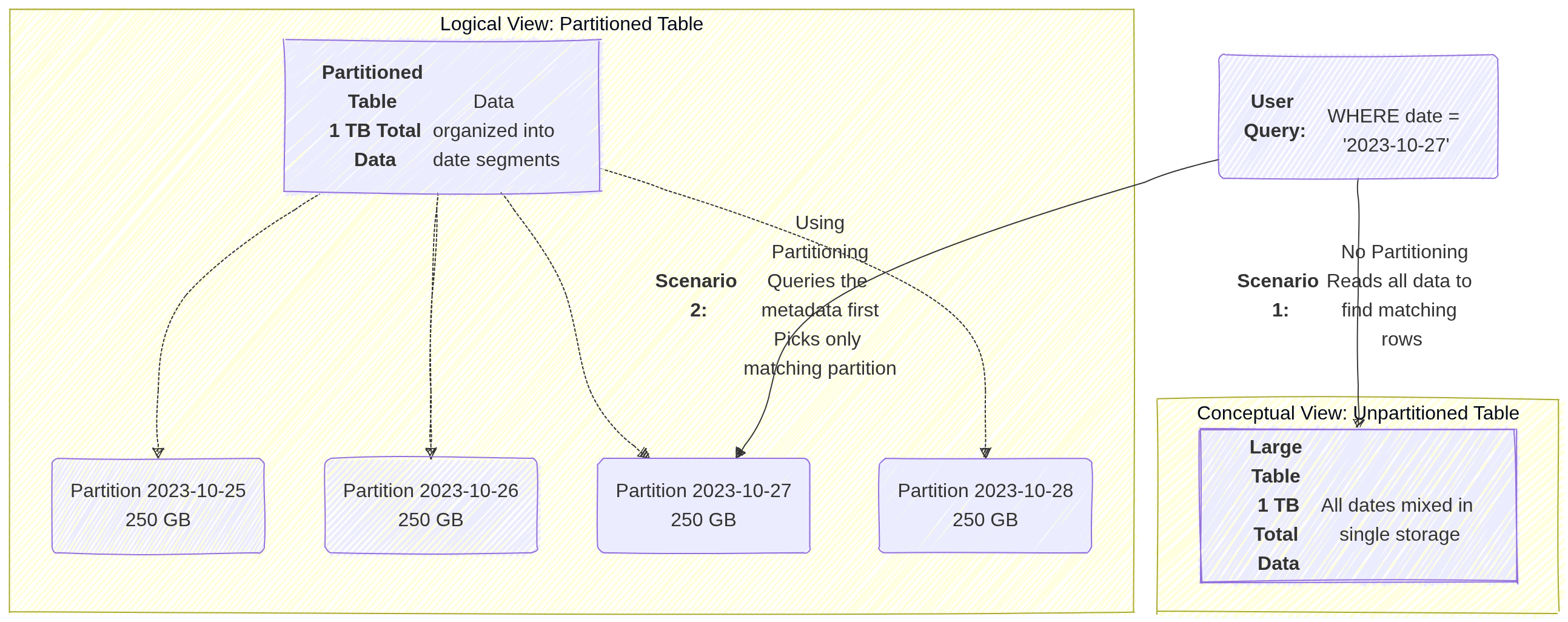
Image source: Own work (Mermaid diagram).
3.2. Clustering
Clustering sorts the data within your table (or within each partition) based on the values in one or more columns.
- How it works: BigQuery organizes the storage blocks so that similar values are physically stored together. When a query filters or aggregates based on a clustered column (e.g.,
WHERE customer_id = 123), BigQuery can quickly locate the specific blocks containing that data and skip the rest. - Best for: Columns with high cardinality (many unique values) that are frequently used for filtering, grouping, or joining.
- Impact: It improves performance for specific query patterns and can further reduce costs when used alongside partitioning by allowing “block pruning” within a partition.
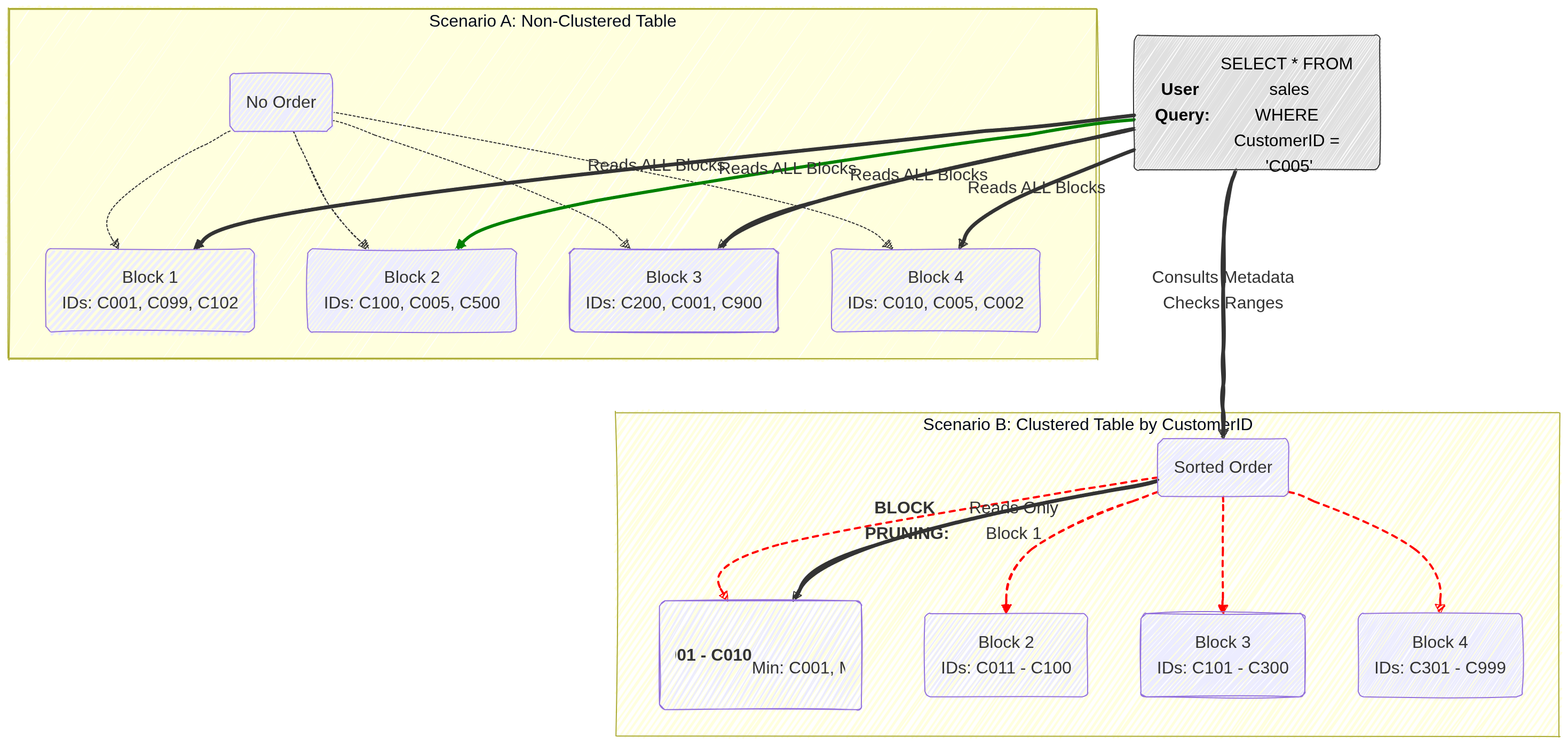
Image source: Own work (Mermaid diagram).
4. Pricing Models
- On-Demand Pricing: Pay per TB scanned ($6.25/TB as of current pricing). Best for unpredictable workloads. Includes a 1TB/month free tier.
- Capacity (Editions) Pricing: Uses Slots (virtual CPUs). Available in Standard, Enterprise, and Enterprise Plus.
- Slot Autoscaling: Automatically scales slots based on workload, ensuring you don’t pay for idle capacity.
- Storage Pricing:
- Active Storage: Data modified in the last 90 days.
- Long-term Storage: Data NOT modified for 90 days (price drops by ~50%).
4.1. Capacity (Editions) Pricing
Capacity pricing uses dedicated virtual CPUs called slots that you reserve or autoscale for your workloads. You pay for those slots over time (slot‑hours) and can buy commitments or use autoscaling reservations to control cost and performance. This model is offered through BigQuery Editions and Reservations and contrasts with on‑demand pricing, which charges per TB scanned.
Slots are the unit of compute. More slots → more concurrent and faster queries. BigQuery assigns slots to query stages automatically.
Reservations let you allocate a fixed number of slots to projects or workloads. Autoscaled reservations expand capacity when needed. You can also buy committed slots for lower unit cost.
Billing is per slot‑hour for capacity pricing. On‑demand billing is per TiB scanned. Use capacity when steady heavy usage makes slot commitments cheaper than repeated on‑demand scans.
5. IAM Roles and Permissions
Understanding the separation of access roles is a frequent exam topic.
roles/bigquery.dataViewer: Allows a user to read data and metadata from tables, but cannot run a query. (Best applied at the Dataset level to follow the principle of least privilege).roles/bigquery.jobUser: Allows a user to run jobs (like query executions) within the project, but does not grant access to view the actual data. (Must be applied at the Project level).- Crucial Exam Scenario: If a user needs to run a query against a dataset, they must be assigned both the
bigquery.dataViewerrole (to access the data) and thebigquery.jobUserrole (to execute the job). roles/bigquery.dataEditor: Allows a user to edit table data and create new tables.roles/bigquery.admin: Grants full control over all BigQuery resources.
6. Data Loading and Federated Queries
- Ingestion: You can batch load data into BigQuery from Cloud Storage (supporting formats like CSV, JSON, Avro, Parquet, and ORC) or stream data directly into the tables.
- External Tables (Federated Queries): You can run queries against data that sits directly in Cloud Storage, Cloud SQL, or Cloud Spanner without having to load or duplicate that data into BigQuery’s native storage.
7. When to Choose BigQuery
When reading an exam question, look for these specific identifiers:
- Petabyte-scale analytics and reporting.
- Enterprise Data Warehousing.
- Complex SQL queries on historical data (e.g., analyzing three years of global sales data).
- Machine learning via SQL (BigQuery ML).
8. Essential Administrative & Management Tasks
- Dataset Location: Must be chosen at creation (e.g.,
USmulti-region oreurope-west1region). Cannot be changed later. To move data, you must recreate the dataset and copy tables. - Table Expiration: Can be set at the Dataset level to automatically delete tables after a certain number of days (useful for temporary/staging data).
- Table Snapshots (2026): Preserve a table’s state at a specific point in time for a fraction of the storage cost. Ideal for “versioning” large tables before a massive update or deletion.
- Data Transfer Service: Use this to automate data movement from SaaS apps (Google Ads, YouTube) or other clouds (Amazon S3, Azure Blob) into BigQuery.
- BigQuery ML: Allows creating and executing machine learning models using standard SQL directly inside BigQuery.
- Connected Sheets: Allows users to analyze billions of rows of BigQuery data directly from Google Sheets.